Export Strava Data: GPS Files, Heart Rate & Activity History (2026)
Updated Sep 28, 2026
Most people arriving here want one GPX file for one run, to open in another app. That takes about ten seconds on the web and is the first section below. Everything after it is for the other job: getting your whole Strava history out in one archive, so it still exists somewhere that is not Strava.
Export at a glance
Archive file map
Top-level structure of the export. Each entry is a file or directory with its format badge and what it contains.
activities/GPXactivities.csvCSVTwo different exports, for two different jobs
Strava gives you a per-activity download and a full account archive. They are separate, they produce different files, and you probably want both eventually. The single file is the quick one. The archive is the one that matters if Strava ever stops caring about you.
How to export one activity (GPX, FIT or original)
- Sign in at strava.com on a computer. The per-activity export is a web feature, so the phone app will not do this for you.
- Open the activity you want.
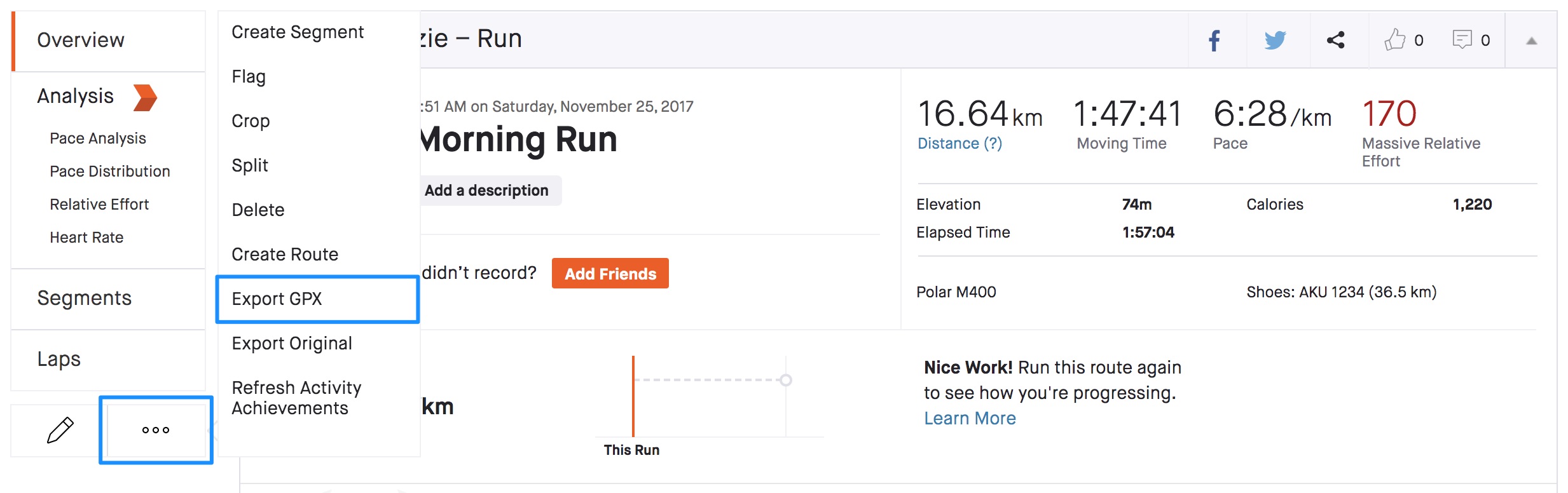
- Click the three-dot menu on the activity page.
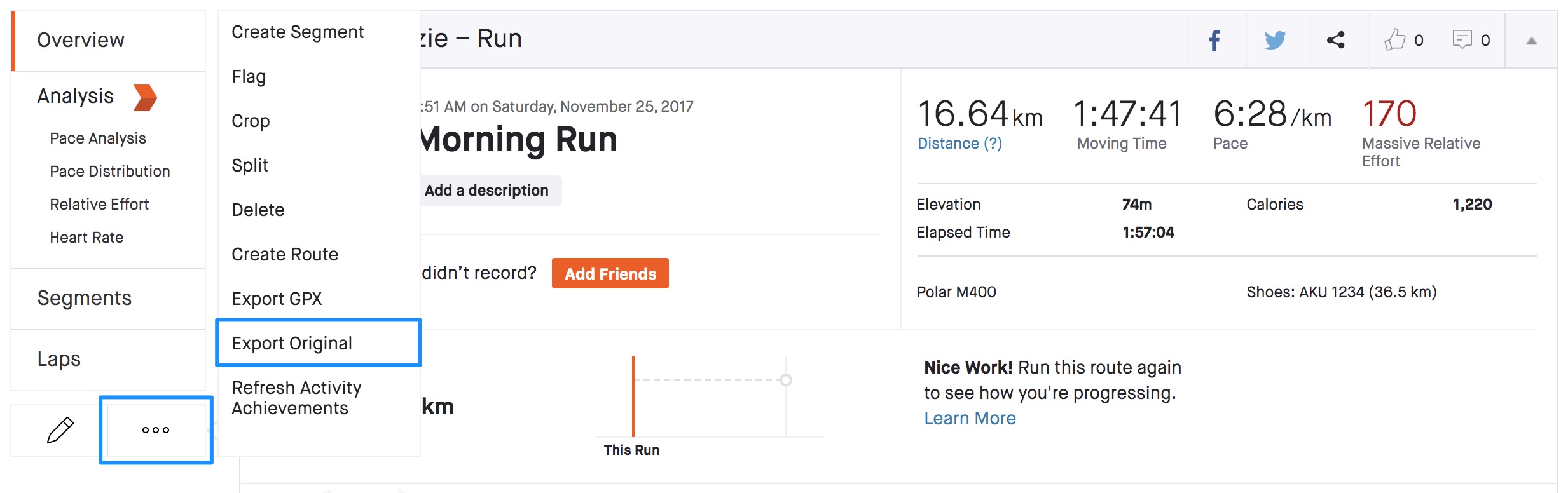
- Choose "Export GPX" for a file Strava regenerates from its own data, or "Export Original" if the activity was uploaded from a device and you want the file exactly as it was recorded.
- There is also a TCX option, but it is not in the menu. Add /export_tcx to the end of the activity URL and it downloads.
- Note which one you took. "Export Original" is usually the better file, because Strava re-encodes what it regenerates and some sensor detail does not survive the trip.
How to export all your activities (bulk export)
- Sign in at strava.com.
- Hover your name in the top right and open Settings.
- Open the My Account tab.
- Under "Download your account", click "Get Started".
- Click "Request download".
- Wait for the email. Strava says it may take a few hours, and large accounts can take considerably longer.
- The download link goes to the email address on your Strava profile, so check that inbox, not necessarily the one you are reading this from.
What the archive contains
- An activities/ folder, with one file per activity. The format follows how the activity was originally uploaded, so it is usually a FIT file, sometimes compressed as .fit.gz, and GPX on some accounts. One export can therefore contain a mixture.
- activities.csv: one spreadsheet row per activity, covering distance, time, elevation and whatever else Strava felt like recording that year.
- And then the part where you have to find out for yourself. Strava does not publish a list of what the archive contains. Its own support article documents how to request the export and then stops, with no file manifest.
- Older guides name a set of extra files: profile.csv, comments.csv, kudos.csv. Plenty of people report the social data being missing, and nobody has found an official statement either way.
- So unzip it and look. That is genuinely the only way to know what you got, and it takes ten seconds. What is not worth doing is planning around a file list you read somewhere, because the format has changed more than once.
GPX, FIT or TCX
- GPX: an open XML standard. Plain text, you can read it in a text editor, and almost anything imports it.
- FIT: Garmin's binary format. Smaller files, holds more sensor detail including power, cadence and HRV, but you need a tool to read it.
- TCX: an older Garmin format, close to GPX. Strava generates this on demand for a single activity via the /export_tcx URL trick below, rather than handing it to you in the archive.
- For compatibility, keep the GPX. If you care about power or advanced metrics, keep the FIT as well. Keeping both costs nothing.
What Strava stores about you
- Every activity with its GPS track, timestamps and duration
- Pace, speed, distance and elevation per activity
- Heart rate, if it was recorded
- Power, if you ride with a power meter
- Cadence and other sensor readings
- Segment times and your personal records
- Kudos and comments, yours and other people's
- Your follower and following lists
- Gear, meaning your shoes and bikes, with mileage totals
- Saved routes and route history
- Your profile and account information
Using the files elsewhere
- Garmin Connect: drag FIT or GPX files onto the web uploader. Mind the duplicates; our <a href="/guides/strava-to-garmin">Strava to Garmin guide</a> covers the import and clean-up.
- Wahoo: use the Wahoo app, or push the route to your device through RideWithGPS.
- Runalyze: takes GPX or FIT and gives you VO2 max trends, training load and fitness-fatigue curves, which Strava does not.
- Komoot or RideWithGPS, for route planning rather than training analysis.
- Google Earth or CalTopo with the GPX files, if you just want to look at a route.
- activities.csv in a spreadsheet, for your own numbers across the whole history.
Saved routes are a different thing
A route is a path you planned. An activity is a recording of something you actually did. Strava stores them separately and exports them separately, which trips people up fairly often. Routes only export as GPX, and there is no original file to ask for because Strava did not record them.
- Go to My Routes in the left navigation, or from your profile under Saved.
- Open the route.
- Click the three-dot menu at the top of the route page.
- Choose "Export GPX".
If you delete your Strava account
- Strava's privacy policy says it can take up to 45 days to delete your personal information and system logs after you close an account. You do not get 45 days to change your mind about whether you wanted the files.
- Your activities stop being visible to other people straight away.
- Do the export first. There is no version of this where deleting first and exporting later works.
Where to keep it
- Keep the activities folder. Each file is small, but the collection is the only copy of years of your training that does not depend on somebody else's business decision.
- Name the folder with the date, something like strava-2026-09.
- Keep an off-site copy: ProtonDrive or pCloud.
- activities.csv is worth its own copy even if you discard the rest. It is a clean spreadsheet of your entire history and it is the piece you will still be able to read in ten years.
Quick version
If you want the short checklist instead of the full guide, use the service page.
Related guides
FAQ
How do I export one activity from Strava?
Open the activity on strava.com, click the three-dot menu, and choose "Export GPX" or "Export Original". Strava regenerates GPX from its own copy and loses some sensor detail, so "Export Original" is the better file when your activity was uploaded from a watch. It is a web feature, not available in the phone app.
How do I export all my Strava activities at once?
Settings > My Account > Download your account > Get Started > Request download. The archive arrives by email, usually within a few hours, and contains an activities/ folder with one file per activity plus a summary spreadsheet.
Should I use "Export GPX" or "Export Original"?
Original, when the option is there. Strava regenerates GPX from its own copy of your data and some sensor detail is lost along the way. Original is the file your watch recorded, untouched. GPX is the fallback when there is no original, and it is the more portable of the two.
How long does the Strava bulk export take?
Strava says a few hours. Big accounts with years of activities can take much longer, and there is no published upper bound. If you have been on Strava for a decade, expect this to be an overnight thing rather than a coffee break.
Can I export Strava as TCX?
Yes, but not from the menu. Add /export_tcx to the end of the activity URL. Strava does not surface this anywhere in the interface, which is presumably deliberate.
Can I get every activity in one file?
Not really. The archive gives you one file per activity inside an activities/ folder. activities.csv is the closest thing to a single file, because it is one spreadsheet across everything, but it has no GPS data in it.
Does the archive include heart rate and power data?
If it was recorded, yes. It sits in the FIT file where available. This is one of the better reasons to keep the FIT files rather than just the GPX.
What is activities.csv?
A spreadsheet with one row per activity: name, date, type, distance, moving time, elevation, heart rate, calories, gear. It opens directly in Excel, Numbers or Google Sheets.
Does exporting delete anything from Strava?
No. Export and deletion are unrelated, and you can export as often as you like.
Can I get segments out of Strava?
Not through the export. Strava's bulk archive does not include segment definitions. Strava owns the segments and lets you view them, but the data is not something they hand over. Segment efforts and your times on them are the part you cannot take with you.
Can I use Strava files in other fitness apps?
Yes. GPX and FIT are open formats, and Garmin, Wahoo, Runalyze, Komoot and a long list of others read them. That is the whole point of keeping the originals.
Last verified: Sep 28, 2026. Steps checked against support.strava.com. Report an outdated step →